LinkedIn message automation means you write your connection note, first message, and follow-ups once, and a tool sends them on a schedule. Each message is personalized with placeholders, stays inside daily limits, and stops the moment someone replies. For people you are not connected to, InMail fills the gap.
This guide is about the messages themselves: what to send, when, and to whom. If you still need to connect LinkedIn and build your first campaign, start with how to automate LinkedIn outreach. For account safety, read is LinkedIn automation safe? To mix LinkedIn with email, see how to build one LinkedIn + email sequence.
What can you automate in LinkedIn messaging?
Automated LinkedIn messaging covers four kinds of messages. Each goes to a different person and has a different length limit.
| Message | Who gets it | Length limit | Buzz step | Its job |
|---|---|---|---|---|
| Connection request note | People you are not connected to | 200 characters on free LinkedIn, 300 on premium | Send Connection Request | Get the accept. No pitch. |
| First message after accept | New 1st-degree connections | Up to 8,000 characters | Send Message | Start a real conversation |
| Follow-up messages (2–3 max) | Connections who haven’t replied | Up to 8,000 characters | Send Message | Add value, one new angle each |
| InMail | People you are not connected to: open profiles, or closed profiles with Sales Navigator credits | Subject up to 200 characters, body up to 2,000 | Send InMail | Reach people who won’t accept, or who you can’t wait for |
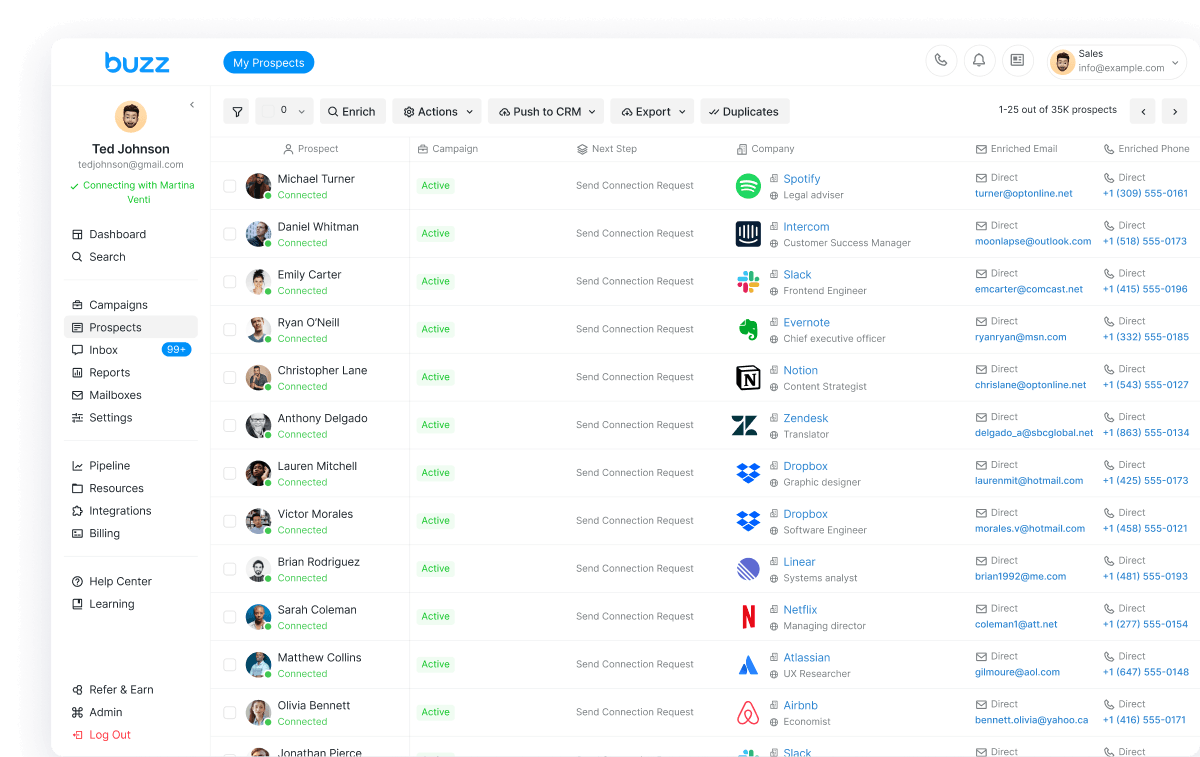
Length limits come from Buzz’s guide to LinkedIn limits in 2026. In Buzz LinkedIn automation, each message is a step in a campaign. LinkedIn tasks run on Buzz’s servers, not in a browser extension.
How do you write a connection request note?
The note has one job: get the accept. Keep it short, specific, and free of pitches.
- Know your limit. Notes can be up to 200 characters on free LinkedIn accounts and up to 300 on premium. The count is taken after placeholders fill in, so a long company name can push you over. If your account has the 200-character limit, Buzz shows it in Account Settings.
- Too long means not sent. If a filled-in note runs past the limit, Buzz shows an error and the request does not go out.
- A note is optional. Buzz can send connection requests with or without a note.
- Watch the monthly note cap. LinkedIn limits how many personalized notes a free account can send each month. Turn on Bypass Personalization Limit in Settings → Account Limits, and Buzz sends requests without a note until your allowance refreshes, then adds notes again on its own.
One more thing: your note won’t show in the Buzz Inbox until the person accepts. Then it appears, dated the day they accepted.
What should the first message after someone accepts say?
Thank them, give one reason you reached out, and ask one easy question. Don’t paste your email pitch into LinkedIn.
Two rules decide whether this message sends at all:
- LinkedIn only lets you message 1st-degree connections. If a Send Message step comes before a connection, Buzz moves that prospect to Pending with a note to connect first or send an InMail.
- Messages after a connection request wait for the accept. Buzz sends them only once the request is accepted. If someone is already connected when they join the campaign, the delay after the request is treated as already passed, so they move straight on.
How many follow-ups should you automate, and how far apart?
Buzz’s campaign-building guide suggests no more than 2–3 follow-up messages per connection, with 3–5 business days between messages and a longer gap each time.
- A delay is the earliest a step can run. Daily limits and queues push it later. In Buzz’s example, if 200 prospects finish a step the same day and your daily message limit is 20, some get the next message on day 4 and others on day 14.
- Set every delay before launch. Changing delays later doesn’t apply to tasks already queued.
- Don’t reorder a live campaign. Moving steps after people are contacted pauses those prospects until you restart them by hand.
- Add something new each time. A resource, a question, or a short insight. Skip “Did you see my last message?” Buzz’s help center notes lines like that irritate more than they engage.
How do you branch messages with If Connected?
A Smart campaign uses if-then logic. With the If Connected condition, people who accept get a LinkedIn message, and everyone else moves to email or InMail. Pick Smart when you create the campaign, because you can’t change campaign type after you save.
- Turn off “Wait for connection request to be accepted” on the Send Connection Request step. With it on, prospects can get stuck before the If Connected check and never reach the “not accepted” path.
- Wait at least 24–48 hours before the If Connected check. That gives LinkedIn time to register accepts.
- Importing a CSV that may include people you know? Put an If Connected condition at the very start. Otherwise Buzz skips the connection request for existing connections but still sends them your later messages.
The full LinkedIn + email step order is in the LinkedIn and email sequence guide. More branching tips are in Buzz’s sequence structure guide.
How does LinkedIn InMail automation work?
InMail lets you message people you are not connected to. In Buzz, you add a Send InMail step. Per the InMail help article:
- You need Sales Navigator. You can send InMail to open profiles, or to closed profiles using your Sales Navigator credits. A Sales Navigator subscription is required either way.
- Recruiter InMail isn’t supported. If Recruiter and Sales Navigator are both active, Recruiter takes priority and InMails can sit in Pending.
- Two settings unlock credits. Turn on “Allow to use my InMail credits” in the Send InMail step, and set the InMail credits per month limit above zero in Settings → Account Limits. That monthly limit is shared across all campaigns.
- One InMail per prospect per campaign. A second Send InMail step for the same person is skipped.
- Some people can’t get one. You can’t InMail someone who already accepted your connection request, or who opted out of InMail.
- Volume varies. You can set 1–80 InMails per working day, but LinkedIn’s own limits, credits, and how many open profiles your list has decide what actually sends.
Buzz’s help center recommends using InMail selectively, for high-value prospects and decision-makers, and keeping each one short and personal. It works best next to connection requests, not instead of them. Another option for non-connections: members of a LinkedIn group you share can get up to 15 messages a month without connecting.
How do you personalize automated LinkedIn messages?
- Placeholders fill in each person’s details, like {first_name}, {company_name}, {occupation}, or {location}. They work in connection requests, messages, InMails, and emails. Insert them with the placeholder picker. If you type them by hand, prospects see the raw text.
- Fallbacks cover missing data. {first_name:there} becomes “Hi there” when the name is blank.
- Spintax rotates wording, so not every message reads the same: [Hi || Hey || Hello] {first_name}.
- AI Message writes a unique message for each prospect, using what it finds on their LinkedIn profile.
- Templates let you save messages you reuse and add them to any step.
- Preview and Manual Approval. Preview shows how a message will look. Manual Approval lets you approve, skip, or hold each text step before it sends.
See Buzz’s full placeholder list for every field.
Does automation stop when someone replies?
Yes. In Buzz, a prospect counts as replied once they send their first response to any of your messages, and replied prospects don’t move on to the next steps. Out-of-office autoreplies count as replies too. You can resume those prospects from the Prospects list or the Inbox.
LinkedIn and email replies land in the Buzz Inbox. There you can answer, filter by status, use saved templates, and send a Calendly link without switching tools. One catch: a message you schedule from the Inbox does not cancel itself if the prospect replies first.
Want help with replies? Turn on the AI Employee to research each prospect, write personalized LinkedIn and email messages, handle replies, and book meetings to your calendar. You can also assign it to a single conversation from the Inbox. It needs a connected Calendly account.
How many automated LinkedIn messages can you send per day?
Buzz’s help center recommends about 30–50 messages a day on free LinkedIn, 50–80 on Sales Navigator (including InMails), and 60–100 on Recruiter. Set them in Settings → Account Limits. They are shared across every campaign on that LinkedIn account, and nothing sends outside your operating hours.
For connection request limits, warm-up, and what to do if LinkedIn restricts you, see the limits guide and our LinkedIn automation safety guide.
Example LinkedIn message templates
These are examples to adapt, not tested benchmarks. Replace the bracketed parts with your own words, and insert placeholders with the picker.
Connection request note (example)
“Hi {first_name:there}, I work with [role]s on [problem] and saw your work at {company_name:your company}. Happy to connect.”
First message after accept (example)
“Thanks for connecting, {first_name:there}. Quick question: how is your team handling [problem] today?”
Follow-up #1, 3–5 business days later (example)
“Hi {first_name:there}, I put together a short checklist on [topic] that teams like {company_name:yours} use. Want me to send it over?”
Follow-up #2, a few days after that (example)
“If [problem] isn’t a priority right now, no problem. Should I check back next quarter?”
InMail for a non-connection (example)
Subject: “[Problem] at {company_name:your company}”
“Hi {first_name:there}, I help [role]s fix [problem] without [common pain]. Open to a 15-minute call next week to see if it fits?”
Launch checklist
- Notes fit 200 characters (free) or 300 (premium) after placeholders fill in
- Placeholders inserted with the picker, each with a fallback
- No Send Message step before a connection; InMail settings and credits checked
- Smart campaign with If Connected, “Wait for connection request to be accepted” off, 24–48+ hours before the check
- 2–3 follow-ups max, 3–5 business days apart, all delays set before launch
- Daily message limits inside the recommended range
Bottom line
Good LinkedIn message automation is short notes, one clear first message, two or three useful follow-ups, and InMail for the people you can’t wait for. Personalize with placeholders, keep daily volume sensible, and let a reply stop everything.
Core is $79/month per seat, billed monthly, and includes LinkedIn and email outreach (see pricing). Comparing tools first? See best LinkedIn automation tools in 2026.
Ready to automate your LinkedIn messages? Start for free with a free seat, limited credits, and a timed trial (no card needed), or explore Buzz LinkedIn automation.